

Learn how to secure an openssh server by adding Cisco DUO MFA.
When exposing an openssh server directly on internet remain an issue as plenty of robot will begin to scan you and try to connect, it’s always frightening to keep it open. Here we will implement Cisco DUO using a pam module in order to enforce the usage of a second factor.
First of all you need a Cisco account correctly configured.
Create the SSH application
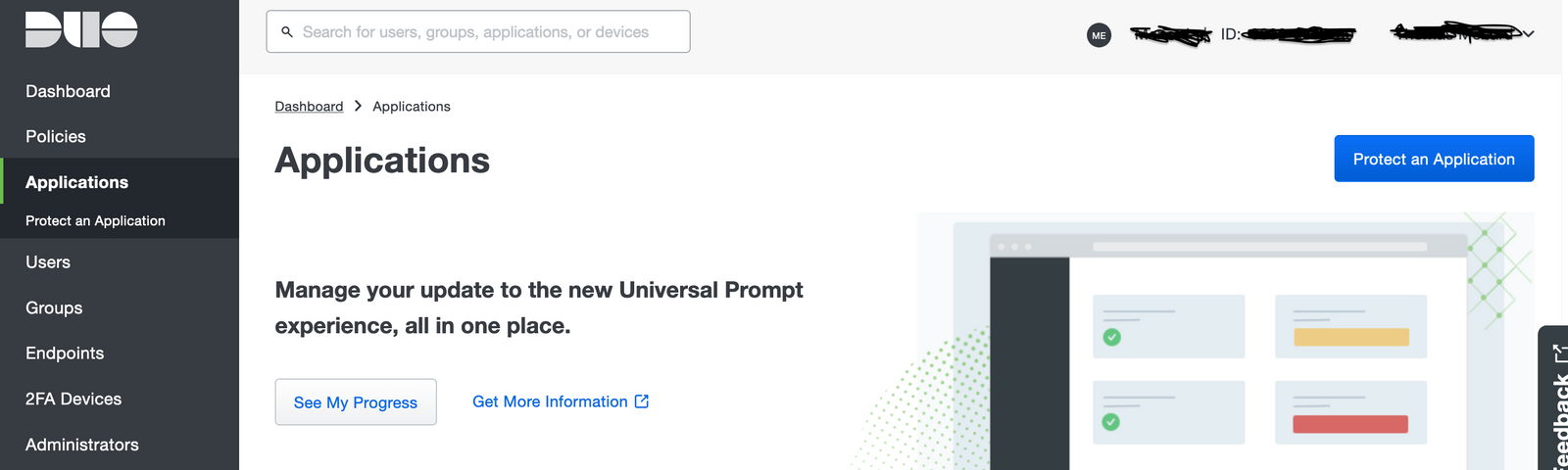
On the Cisco Duo Admin panel, click on Protect an Application.
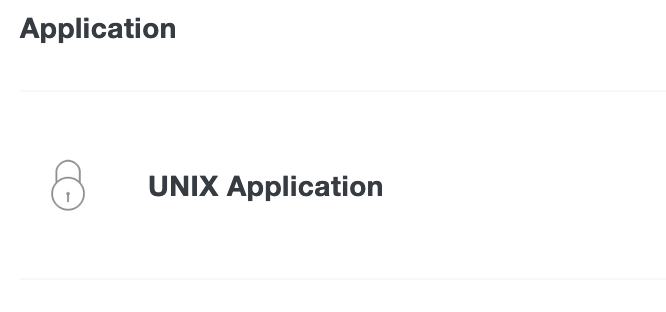
And search for UNIX Application, click on Protect
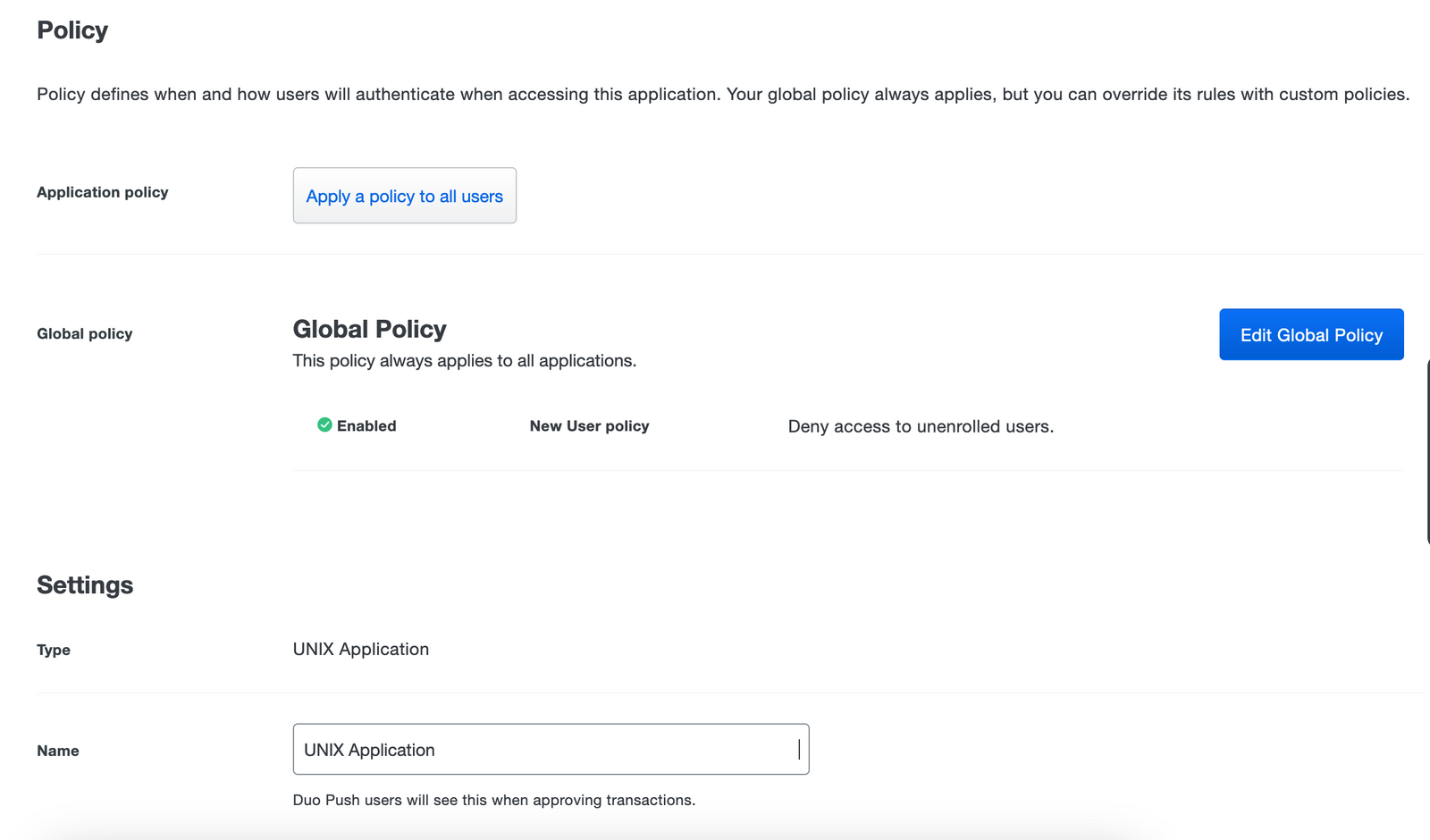
You will reach the following page describing the applications policies you can apply and the settings of the Global policy.
Note
The Name field will be used in Duo Mobile when you get a popup to validate the second factor.
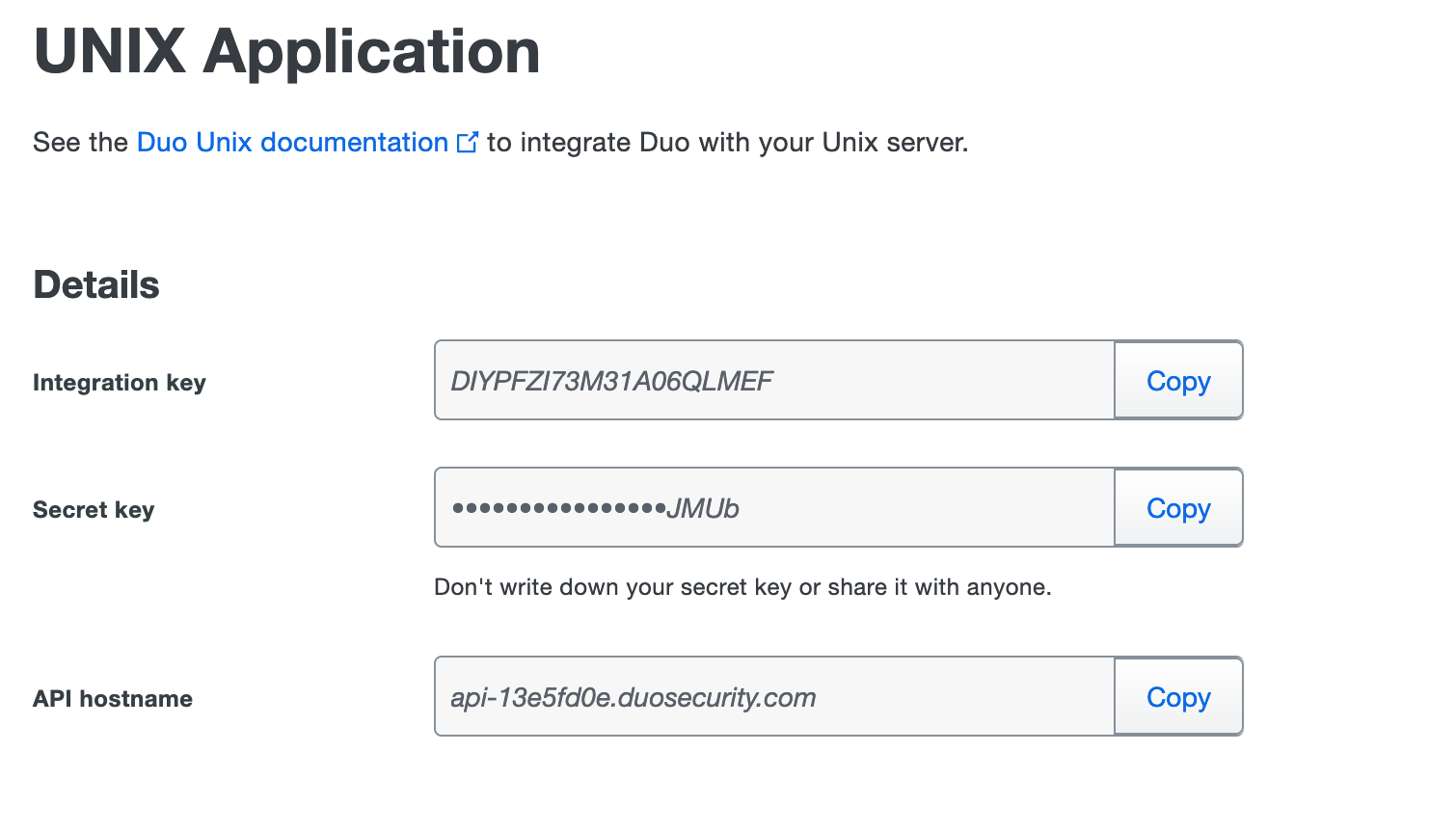
Once you have completed the settings, copy the credentials (top of the page)
Configure your server : pam_duo
Note
Reference documentation : https://duo.com/docs/duounix
We are testing against a Rocky Linux 9 but the setup is basically the same on other distro.
Create /etc/yum.repos.d/duosecurity.repo
1[duosecurity]
2name=Duo Security Repository
3baseurl=https://pkg.duosecurity.com/RedHat/$releasever/$basearch
4enabled=1
5gpgcheck=1
Import the gpg key :
1# rpm --import https://duo.com/DUO-GPG-PUBLIC-KEY.asc
2# dnf install -y duo_unix
The duo_unix package bundle 2 tools login_duo and pam_duo pam module.
We are going to implement the pam module as login_duo is for me less secure (configured in sshd and seems to be not so secure).
Edit the /etc/duo/pam_duo.conf and add the credentials you have copied before on the Duo Admin panel.
 1[duo]
 2; Duo integration key
 3ikey =
 4; Duo secret key
 5skey =
 6; Duo API host
 7host =
 8; `failmode = safe` In the event of errors with this configuration file or connection to the Duo service
 9; this mode will allow login without 2FA.
10; `failmode = secure` This mode will deny access in the above cases. Misconfigurations with this setting
11; enabled may result in you being locked out of your system.
12failmode = safe
13; Send command for Duo Push authentication
14;pushinfo = yes
Note
You can extend the configuratiob file by adding a group settings where you can filter which group will get Duo Prompt
Now you will need to reconfigure your openssh server
Warning
May 2023: As of now pam_duo support only one auth method at a time. You have to choose which auth method you want : publickey or password.
For this documentation I will use password authentication because for me publickey and Fido2 token or Duo Push are something you have factors… so it’s not enough for me.
Careful
Authentication using two or more factors to achieve authentication. Factors include: (i) something you know (e.g. password/personal identification number (PIN)); (ii) something you have (e.g., cryptographic identification device, token); or (iii) something you are (e.g., biometric).
Configure your server : sshd
To summarize the changes you will need to do, here is an extract of what is in the official documentation
1UsePAM yes
2ChallengeResponseAuthentication yes
3UseDNS no
And for some newer system
1UsePAM yes
2KbdInteractiveAuthentication yes
3UseDNS no
Warning
On RHEL 9 based OS, there is an include file in /etc/ssh/sshd_config.d that you will use to put this modifications
 1# This system is following system-wide crypto policy. The changes to
 2# crypto properties (Ciphers, MACs, ...) will not have any effect in
 3# this or following included files. To override some configuration option,
 4# write it before this block or include it before this file.
 5# Please, see manual pages for update-crypto-policies(8) and sshd_config(5).
 6Include /etc/crypto-policies/back-ends/opensshserver.config
 7
 8SyslogFacility AUTHPRIV
 9
10ChallengeResponseAuthentication yes
11
12GSSAPIAuthentication yes
13GSSAPICleanupCredentials no
14
15UsePAM yes
16UseDNS no
17
18X11Forwarding yes
19
20# It is recommended to use pam_motd in /etc/pam.d/sshd instead of PrintMotd,
21# as it is more configurable and versatile than the built-in version.
22PrintMotd no
If you want to go a step further, you should block root connection (if needed you can log on root using the console…
In my case I modify the sshd_config with the following parameters
1PermitRootLogin no
2StrictModes yes
3PubkeyAuthentication no
And finaly restart the ssh server
1# systemctl restart sshd
Configure your server : pam ssh
Now we need to define the pam configuration for ssh logins
Edit /etc/pam.d/sshd (we will only focus on the auth section, don’t copy paste by replacing the whole file)
1#%PAM-1.0
2
3auth       required       pam_sepermit.so
4auth       required       pam_env.so
5auth      substack       password-auth
6auth       sufficient     pam_duo.so
7auth       required       pam_deny.so
8auth       include      postlogin
Now you can try to start a new ssh session, you should get prompted for Duo auth after typing your password
 1 $ ssh [email protected]
 2([email protected]) Password:
 3([email protected]) Duo two-factor login for tmenard
 4
 5Enter a passcode or select one of the following options:
 6
 7 1. Duo Push to iOS
 8
 9Passcode or option (1-1): 1
10Success. Logging you in...
11Success. Logging you in...
12
13Last login: Tue May 30 00:09:40 2023 from 192.168.1.134
14[tmenard@serveur ~]$
If you have enroll a FIDO2 key you can directly press the button on your key to generate the passphrase.
Configure your server : pam sudo
If you want to go a step further and want to also secure sudo command, you can alter your pam configuration in /etc/pam.d/system-auth.
1#auth        sufficient                                   pam_unix.so nullok
2auth        requisite                                    pam_unix.so try_first_pass nullok
3auth        sufficient                                   pam_duo.so
4auth        [default=1 ignore=ignore success=ok]         pam_usertype.so isregular
5auth        sufficient                                   pam_sss.so forward_pass
6auth        required                                     pam_deny.so
Note
duo_unix unfortunately don’t use the latest improvement of the latest Redhat based distro aka authselect. You like it or hate it, anyway the thing is that system-auth pam configuration is a link to an authselect profile. Altering like this is not bad … it’s just dirty. Maybe in the future it will be implemented.
You might also like
 security
Configure MFA using Cisco DUO
Learn how to setup Cisco DUO MFA that you will be able to use on your homelab to secure your access
 security
Secure your selfhosted apps using authentik
Background As an IT Geek, I like to test stuff at home… adding multiple apps during my spare time is sadly …